Fortunately, there are various web calendar services out there which do offer a format which Outlook and Outlook.com can use and even Outlook Web App (OWA)!
Calendar websites
Two of such websites offering a web calendar for the FIFA World Cup are:
- WebCal.fi
In the Calendars section, click on the Sports tab and you’ll find a link to the FIFA World Cup. You have the option to subscribe to just a specific team/country as well. In the left section, you have the option to select the schedule in another language as well. - iCalShare
In the Soccer Calendars Category, you’ll find lots of calendars submitted by various people but a search might give better results. Pick one you like. Some promise that they will update it with match results, like this one.
Adding the Calendar to Outlook
Adding the calendar to Outlook is really easy when it has been set as the default webcal protocol handler in Windows:
- Click on the Subscribe button on the website.
- Choose Allow when prompted.

- Choose Yes to confirm the subscription in Outlook.

To subscribe manually, you can use the “Manual subscription” section on the WebCal.fi website or right click on the “Subscribe to Calendar” button on the iCalShare website to get the required URL.
To add or remove the Calendar in Outlook use:
- Outlook 2007
Tools-> Account Settings…-> tab Internet Calendars - Outlook 2010 and Outlook 2013
File-> Account Settings-> Account Settings…-> tab Internet Calendars
Adding the Calendar to Outlook.com
When you are using an Outlook.com account, you can also add it to your Calendar module.
- In another tab of your browser, go to the Calendar module in Outlook.com: https://calendar.live.com
- At the top left, next to the New button, click on: Import

- From the panel on the left choose: Subscribe
- Switch back to the browser tab where you have the web calendar that you wish to add listed.
- Copy the required URL for the web calendar
- iCalshare
Instead of clicking on the Subscribe button, right click on it and choose: Copy Shortcut. - WebCal.fi
Use the Manual Subscription section to get the URL.
- iCalshare
- Switch back to the browser tab which holds your Outlook.com Calendar.
- Paste the address (CTRL+V) in the “Calendar URL” field.
- Name the Calendar, assign it a color and optionally specify a Charm.

- Click on Subscribe.
- Back in your Calendar, you may need to enable the just subscribed Calendar via the Gear icon in the top right corner to make the matches visible in your Calendar.
To unsubscribe from the Calendar, click the Gear icon it the top right corner and choose: Options. Select the Calendar which you want to remove and then click the “Delete” button all the way at the top.
Adding the Calendar to Outlook Web App (OWA)
When you have an Exchange account and it is hosted on Exchange 2010 or Exchange 2013, you can also add the web calendar to OWA.
- In another tab of your browser, logon to OWA and select your Calendar.
- Open the “Open Calendar” dialog:
- OWA 2010
Right click on “My Calendars” and choose: Add Calendar…
Or click on the Share button and choose: Add Calendar… - OWA 2013
Right click on “My Calendars” and choose: Open Calendar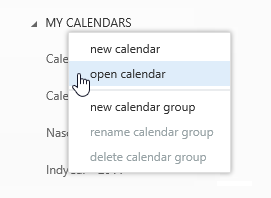
- OWA 2010
- Switch back to the browser tab where you have the web calendar that you wish to add listed.
- Copy the required URL for the web calendar
- iCalshare
Instead of clicking on the Subscribe button, right click on it and choose: Copy Shortcut. - WebCal.fi
Use the Manual Subscription section to get the URL.
- iCalshare
- Switch back to the browser tab which holds your OWA Calendar.
- Paste the address (CTRL+V) in the “Calendar URL” (OWA 2010) or “Internet Calendar” (OWA 2013) field.
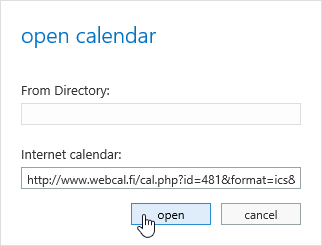
- Click on OK or Open to confirm the subscription.
- Back in your Calendar, you may need to enable the just subscribed Calendar by placing a checkmark in front of it.
To unsubscribe from the calendar, right click on it and choose “Remove Shared Calendar” (OWA 2010) or “Remove” (OWA 2013).

No comments:
Post a Comment